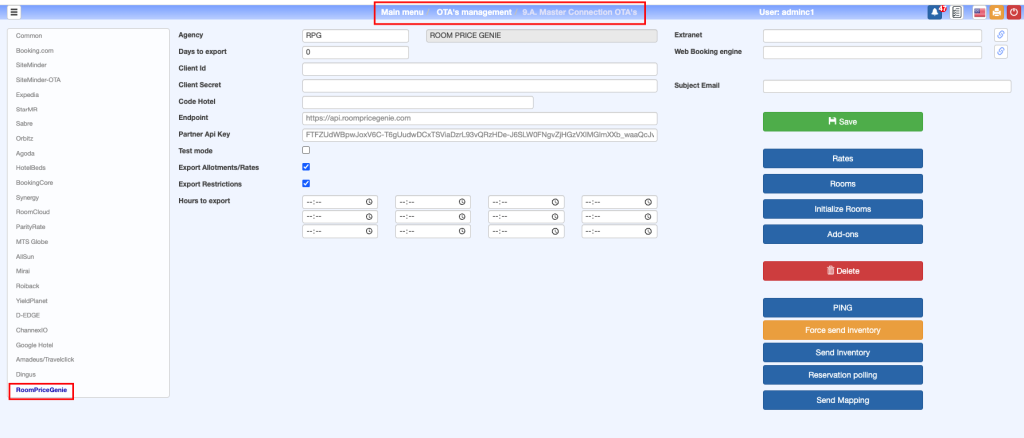
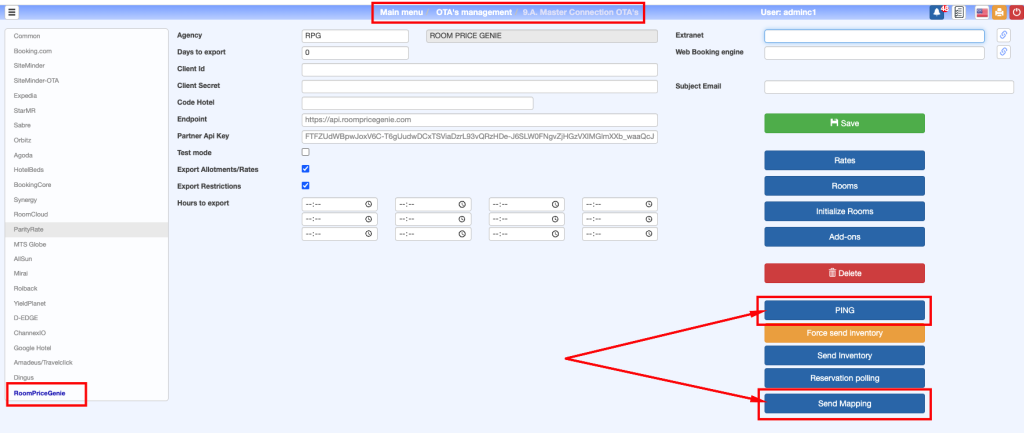
Agency: Agency that will be used for sending and updating restrictions.
Days to export: Number of future days for which data will be sent.
Client Id.:This information is provided by RoomPriceGenie.
Client Secret.:This information is provided by RoomPriceGenie.
Hotel Code (property code).:This information is provided by RoomPriceGenie.
Test mode: If this test mode is enabled, only the inventory is generated, without sending anything to RoomPriceGenie.
Export Allotments/Rates: Allows deciding whether to include allotments and rates when sending inventory.
Export Restrictions: Allows deciding whether to include restrictions when sending inventory.
Hours to export: Allows selecting up to 12 times during the day when all newly generated data will be automatically sent.
IMPORTANT: Once the configuration is completed, it is essential to click the save button to gain access to the rest of the features.
IMPORTANT: In this integration, the allotments associated with the agency are not considered in the availability calculation.
Rate and Room Mapping
As with the rest of the OTAs, it is necessary to configure which rates and rooms will be sent to RoomPriceGenie. Additionally, for each rate and room being sent, it is necessary to specify the code that will identify it on the RoomPriceGenie platform.
To map a new rate, follow these steps:
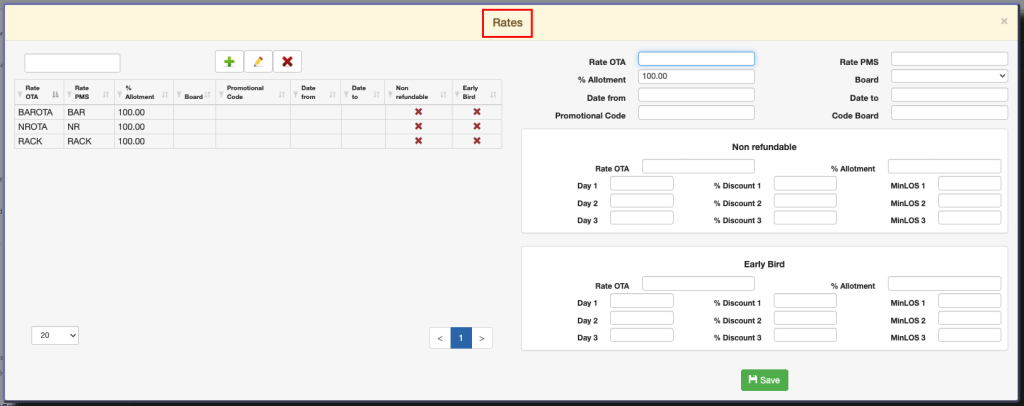
Click on Rates to open the configuration popup.
Select the desired rate in the Rate PMS.
Fill in the Rate OTA field with the code that will be sent to RoomPriceGenie. This will usually be the same as the PMS code.
Click Save. The other fields are not used.
The new mapping will appear in the table on the left.
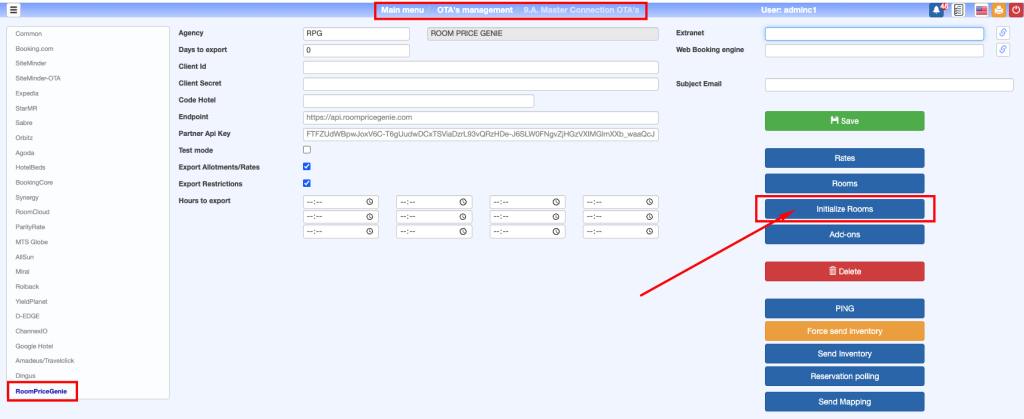
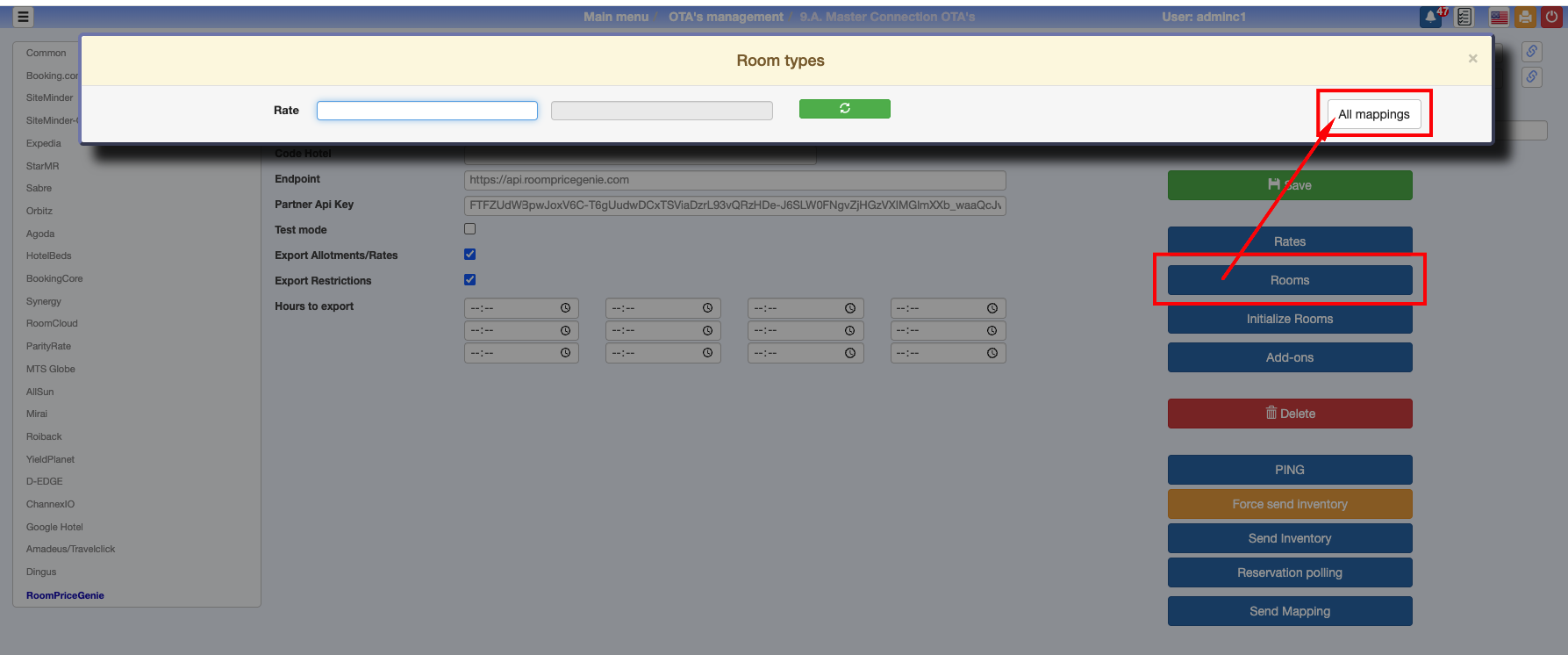
For room mappings, the usual approach is to map all rooms to all rates. For this reason, a new button Initialize Rooms has been added for this integration. It automatically creates mappings for all rooms (excluding halls and virtual rooms) across all rates already configured.
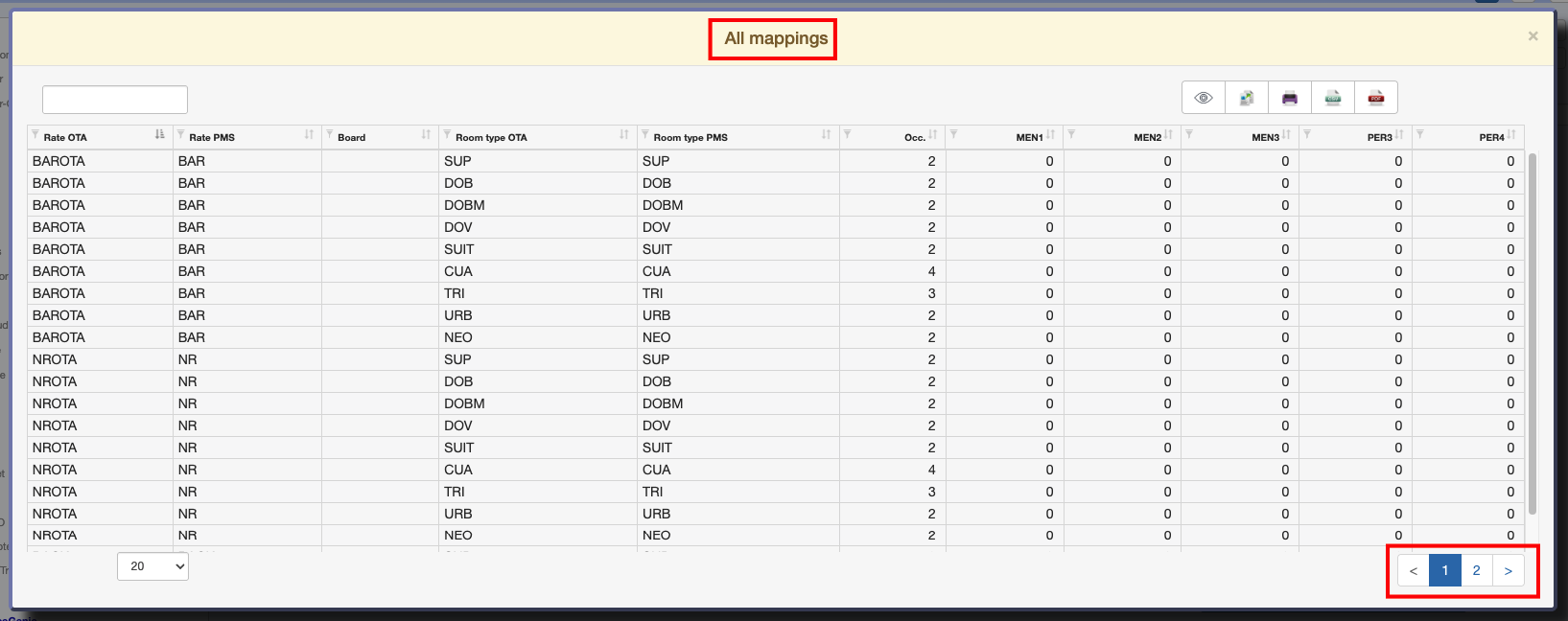
To check that all the mapping has been created, within the Rooms option, clicking All Mappingwill display a list of all the mappings created.
Initial Data Transmission
To verify that the configuration is correct and that a connection to RoomPriceGenie can be established, click the Ping button.
Once the mappings are created, they must be sent to RoomPriceGenie. To do this, click the Send Mapping button. This step is only necessary when changes are made to rate or room mappings.
After sending the mappings, you can proceed to send the inventory. A manual send can be done from the same configuration page by clicking Send Inventory. It can also be done from the 9.2. Manual Inventory Send page. A full inventory send can be forced by first clicking Force Inventory Send and selecting the dates to be resent.
IMPORTANT: The first time the inventory is sent, RoomPriceGenie recommends exporting a long period of time, between 12 and 18 months.